Drive Zone Online for PC — Download & Play on Windows (Tested Settings)
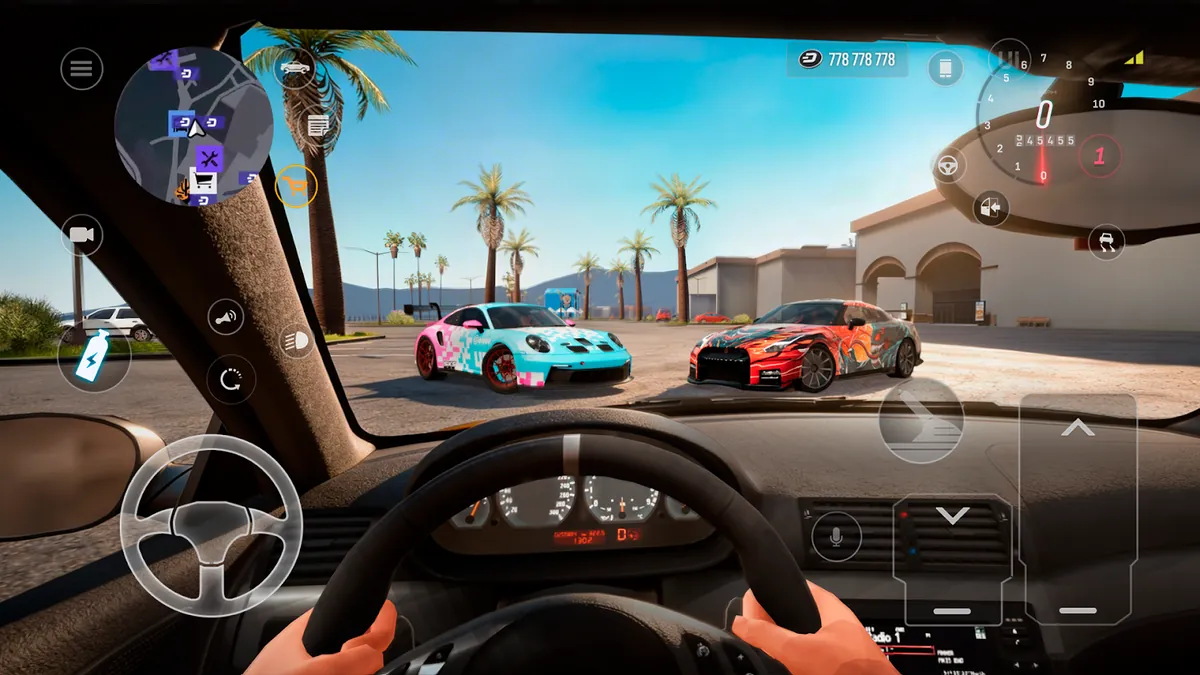
Yes, you can play Drive Zone Online for PC — but not the way most download pages pretend. Jet Games FZ-LLC has never released a native Windows version of the game, so every “Drive Zone Online PC download” you see is the Android game (latest build v1.15.0, released November 5, 2026, about 440 MB) running through an official Google route or an Android emulator. The good news: all three working methods below are free, take under fifteen minutes to set up, and one of them even runs the MOD APK. This guide gives you the tested settings, the keyboard layout and the honest limits of each method, so you pick the right one first instead of reinstalling three times.
Quick Answer
There is no native Drive Zone Online PC version from Jet Games. You have three working options: Google Play Games on PC — Google’s own emulator, easiest setup, official game only; BlueStacks 5 — best all-round emulator, and the only route here that can also install the MOD APK; and LDPlayer 9 — the lightest option, built for low-spec PCs. All three are free.
First, a name warning: the other “DriveZone” is a different game
Search results for this keyword are polluted by an unrelated browser game also called “DriveZone” (the one hosted on browser-game portals such as ubg76). That is a small web game by a different developer — it is not Drive Zone Online by Jet Games, it has none of the same cars, physics or multiplayer, and nothing in this guide applies to it. If a page offers you an instant-play “DriveZone” in your browser with no download, you are looking at the wrong game. The real Drive Zone Online is the Android game listed on Google Play as “Drive Zone: Car Simulator Game,” and on PC it only runs through the three methods below.
The 3 ways to play Drive Zone Online on PC, compared
| Method | Best for | Minimum PC RAM | MOD APK works? | Cost |
|---|---|---|---|---|
| Google Play Games on PC | Official players who want zero fuss | 8 GB | No | Free |
| BlueStacks 5 | Most players, including MOD users | 8 GB (4 GB workable) | Yes | Free |
| LDPlayer 9 | Low-spec and older PCs | 4 GB | Yes | Free |
Short version: if you play the official game and your PC is decent, use Google Play Games. If you want the MOD APK on PC, or your PC struggles with Google’s system requirements, use BlueStacks 5. If your PC is genuinely old, skip to LDPlayer 9.
One setup step matters more than everything else in this guide: enable virtualization (Intel VT-x or AMD-V) in your PC’s BIOS/UEFI settings. All three methods run Android through virtualization, and with it switched off — which is the default on many prebuilt PCs — the game will crawl at single-digit frame rates no matter what settings you choose inside the emulator. Both BlueStacks and LDPlayer warn you on first launch if virtualization is disabled; if you see that warning, fix it in the BIOS before blaming the emulator. It is a two-minute change and typically doubles or triples performance.
Method 1: Google Play Games on PC (official and easiest)
This is the route Google itself points to — the Play Store listing for Drive Zone Online shows Windows availability because the game is playable through Google Play Games on PC, Google’s official emulator. It runs the 100% official game, signed in with your normal Google account.
- Download and install Google Play Games (beta) from Google’s official page on your Windows PC.
- Sign in with the same Google account you use on your phone.
- Search for Drive Zone: Car Simulator Game inside the Play Games library.
- Click Install, wait for the roughly 440 MB download plus the game’s own in-app data, and launch it.
Two things to know. First, this is the official version only — there is no sideloading here, so the MOD APK cannot be installed through Play Games. Second, because you are signed in with your game account, your garage, money and progress are the same ones from your phone; play on PC in the evening and your progress is on your phone the next morning. If all you want is a bigger screen and a keyboard for the normal game, stop here — this is the cleanest setup of the three.
Method 2: BlueStacks 5 (recommended — official game and MOD APK)
BlueStacks 5 is the method we recommend for most readers, for one simple reason: it is the only full-featured route that handles both the official game and the MOD APK. You install the official game from the Play Store inside BlueStacks, or you sideload the mod file directly.
- Download and install BlueStacks 5 from the official BlueStacks website.
- For the official game: open the Play Store inside BlueStacks, sign in, and install Drive Zone: Car Simulator Game normally.
- For the MOD APK: download the v1.15.0 mod file to your PC first (follow our step-by-step Drive Zone Online MOD APK install guide for the file and the safety checks), then in BlueStacks use the Install APK option from the right-hand toolbar, select the file, and let it install.
- Launch the game from the BlueStacks home screen and apply the settings in the next section before your first race.
One honest warning about the mod on PC: treat the mod build as a separate, secondary install. Do not sign the mod into the Google account that holds your main official-game progress. The account is what carries your garage between devices, and mixing a modified build with your main account is how players get their progress flagged. Our Drive Zone Online MOD APK guide explains the risks in full — the short version is: main account on the official game, mod on a spare account.
Best BlueStacks settings for Drive Zone Online
Out of the box, BlueStacks is tuned for compatibility, not speed. Change these settings (gear icon → Performance / Graphics / Display) before playing:
| Setting | Recommended value |
|---|---|
| CPU cores allocated | 4 cores |
| Memory (RAM) allocated | 4 GB or more |
| Performance mode | High performance |
| Graphics renderer | Vulkan (or DirectX if Vulkan stutters on your GPU) |
| Frame rate | 60 FPS (120 only on a high-refresh monitor with a strong GPU) |
| Display resolution | 1920×1080 — drop to 1600×900 or 1280×720 on weaker PCs |
In the game itself, set graphics to Medium first. Drive Zone Online’s open world is heavier than it looks; a locked 60 FPS on Medium feels far better than 35 FPS on High, and you can raise shadows and draw distance later if your frame rate has headroom.
Keyboard controls (keymapping)
BlueStacks’ Game Controls editor (keyboard icon in the right toolbar) lets you place keys over the on-screen buttons. This is the standard layout most PC players settle on — set it once and it saves per game:
| Action | Key |
|---|---|
| Steer left / right | A / D or ← / → |
| Accelerate | W or ↑ |
| Brake / reverse | S or ↓ |
| Handbrake | Space |
| Change camera | C |
| Reset car | R |
| Nitro | Shift |
| Menu / pause | Esc |
Map the steering to a “tap spot” on each side of the screen rather than the tilt control, and put the handbrake on Space from day one — drifting on PC is nearly impossible until handbrake is under your thumb.
Controller and steering wheel support
An Xbox or PlayStation controller works well in BlueStacks: connect it by USB or Bluetooth, and BlueStacks’ gamepad mapping will either pick up the game’s own layout or let you map sticks and buttons the same way as the keyboard. Left stick to steer, right trigger to accelerate is the layout most players prefer, and it is noticeably smoother for drifting than keys. Steering wheels are a different story — be honest with yourself before buying one for this game. Wheel support inside Android emulators is hit-and-miss: some wheels are detected as generic gamepads with no force feedback, pedals often need manual mapping, and a few are not detected at all. A controller is the reliable upgrade; a wheel is a gamble.
Method 3: LDPlayer 9 for low-spec PCs
If your PC has 4–8 GB of RAM, an older integrated GPU, or BlueStacks simply feels heavy, LDPlayer 9 is the lighter emulator and it still runs Drive Zone Online — including the MOD APK through its own APK install button.
- Install LDPlayer 9 from the official LDPlayer site.
- Install the game from the Play Store inside LDPlayer, or drag the MOD APK file onto the LDPlayer window to sideload it.
- Before launching, open LDPlayer settings and apply the low-spec values below.
Low settings that keep the game playable on weak hardware: 2 CPU cores, 3–4 GB RAM, resolution 1280×720, frame rate 30–60 FPS (start at 60, drop to 30 if the open world stutters), and in-game graphics on Low with shadows off. You give up visual polish, but the driving, drifting and multiplayer all work — which is more than the browser-game namesake above can say.
What about Mac?
Honestly: there is no good official route. Google Play Games on PC is Windows-only, Jet Games publishes no macOS version, and Android emulation on Apple-silicon Macs is limited to developer-oriented tools that are fiddly, often can’t run Play Store builds cleanly, and are not worth the effort for one game. If you own a Mac, the practical options are playing on your phone, or using a Windows PC / dual-boot setup. Any site selling a one-click “Drive Zone Online for Mac” download is selling you something else.
Which PC method should you choose?
Choose Google Play Games if you only play the official game and want your phone garage on a big screen with the least setup. Choose BlueStacks 5 if you want the MOD APK on PC, a controller or keymapping, or the best balance of performance and features on a mid-range machine. Choose LDPlayer 9 if your PC is old or low on RAM and you just want the game running smoothly at modest settings. Whichever you pick, the game itself is identical — the same v1.15.0 build, the same servers, the same multiplayer — only the wrapper around it changes.
Frequently Asked Questions
Can I play Drive Zone Online on PC?
Yes. There is no native Windows version, but the game runs on PC three ways: through Google Play Games on PC (official game only), BlueStacks 5 (official game plus the MOD APK), or LDPlayer 9 for low-spec machines. All three are free, and with the official game your phone progress carries over through your Google account.
Is there a native PC version of Drive Zone Online?
No. Jet Games FZ-LLC has never released a native Windows or Steam version of Drive Zone Online. The Windows availability shown on the Google Play listing refers to Google Play Games on PC, Google’s emulator. Any website offering a standalone “Drive Zone Online PC .exe” is not offering the real game.
Will my phone progress carry over to PC?
With the official game, yes — as long as you sign in on PC with the same Google account you use on your phone, your cars, money and progress sync between the two. The exception is the MOD APK on BlueStacks or LDPlayer: treat that as a separate install on a secondary account, and do not expect its progress to sync back to your main account.
Last updated: November 10, 2026